From static to live: Connect your SharePoint Copilot App to (live) external news
Give your Copilot-generated news board a live connection to external data—with Power Automate and a SharePoint list.
In this second video demonstration, I extend the solution from Part 1 so that the dashboard can display updated news without recreating the HTML app.

Why the first News Board needed an upgrade
In the first video, I used a small Power Automate flow to retrieve news
from an HTTP endpoint—an address that provides data from an external
service. The flow saved the response as news-data.json in a
SharePoint document library. Copilot then used that file to create an
attractive HTML news board.
However, the news entries were embedded directly into the generated HTML. The dashboard contained a snapshot of the data available when it was created. Updating the JSON file did not update the news board, because the app had no ongoing connection to its source.
The next step was therefore to create a data-bound dashboard: an app that reads its content from a connected data source whenever it loads.
The limitation: No direct access to the HTTP endpoint
In the SharePoint Copilot experience shown in this demonstration, the generated HTML app cannot call the external HTTP endpoint directly. Power Automate handles that part of the integration.
My first attempt was to ask Copilot to load the JSON file each time the dashboard opened, instead of embedding its contents. In the tested setup, this produced data-loading errors. Moving the file to another location did not resolve the issue.
The working solution uses a SharePoint list as a live data bridge. Power Automate brings the external news into the list, and the HTML app reads its news entries from there.
Create a SharePoint List for the news
To prepare the bridge, I ask Copilot to examine the structure of
newsdata.json and create a matching SharePoint list.
The resulting list includes fields for information such as the headline,
category, date, summary, image, and article URL.
Each news entry will become one list item. This gives the dashboard a structured source that can be updated independently of the app's design.
Copilot creates the list structure in the demonstration. However, its available workflow actions cannot complete the requested JSON import. I therefore extend the existing flow in Power Automate to handle the data transfer.
Extend the Power Automate Flow
The existing flow already retrieves the external data. The extension turns that response into individual SharePoint list items:
- Load the news from the HTTP endpoint. Keep the existing HTTP GET action to retrieve the current news data.
- Extract the news entries. Use the parse JSON action to make the individual fields in the response available to the following flow actions.
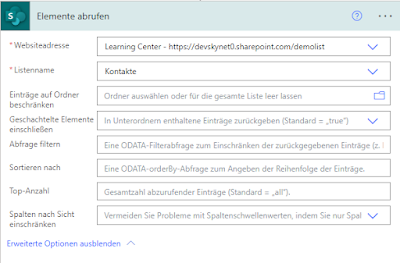
- Prepare the list for the new import. In this demonstration, the flow retrieves and deletes the existing list items before importing the latest news collection.
- Create one list item for each news entry. The flow loops through the returned news entries and writes their headlines, categories, dates, and other details into the matching SharePoint columns.
After the flow finishes successfully, the SharePoint list contains the newly imported news. Saving the response as a separate JSON file is now optional: the dashboard uses the list as its data source.
Copilot build the connected news board
With the list populated, I ask Copilot to create a news-ticker-style HTML dashboard connected to that list. The main view displays the headline, date, and category, keeping the news board easy to scan.
Additional information appears in a side panel when a user hovers over or focuses on a news entry. This includes details such as the summary, image, and link to the original article.
The essential requirement is the data connection: the app should read the SharePoint list whenever it opens, rather than copy the news into the generated HTML. The layout and the news content can now change independently.
Test the connection: Change a headline and refresh
To verify the result, I change a headline directly in the SharePoint list and refresh the dashboard. The updated headline appears in the news board. This confirms that the HTML app is reading the list.
For external news updates, the same connection depends on two steps: Power Automate must first import the latest endpoint data, and the dashboard must then reload its list data. In this demonstration, “live data-bound” means the app reads current list data when opened or refreshed. Continuous background updates are not demonstrated.
Watch the static news board become a connected app
Power Automate retrieves and prepares the external data. SharePoint stores it as individual news entries. The Copilot-generated HTML app presents those entries in an interactive dashboard.
This approach provides a practical way to bring HTTP endpoint data into the demonstrated Copilot app experience, while keeping the news content separate from the page design.
Watch Part 2 to see the complete walkthrough—from creating the list and extending the flow to testing the connected news board.


Kommentare